
Add employees to H2R Core
How to add an employee in H2R Core, which fields are required, what the employee record holds, and how to invite the person to sign in.
Last updated:
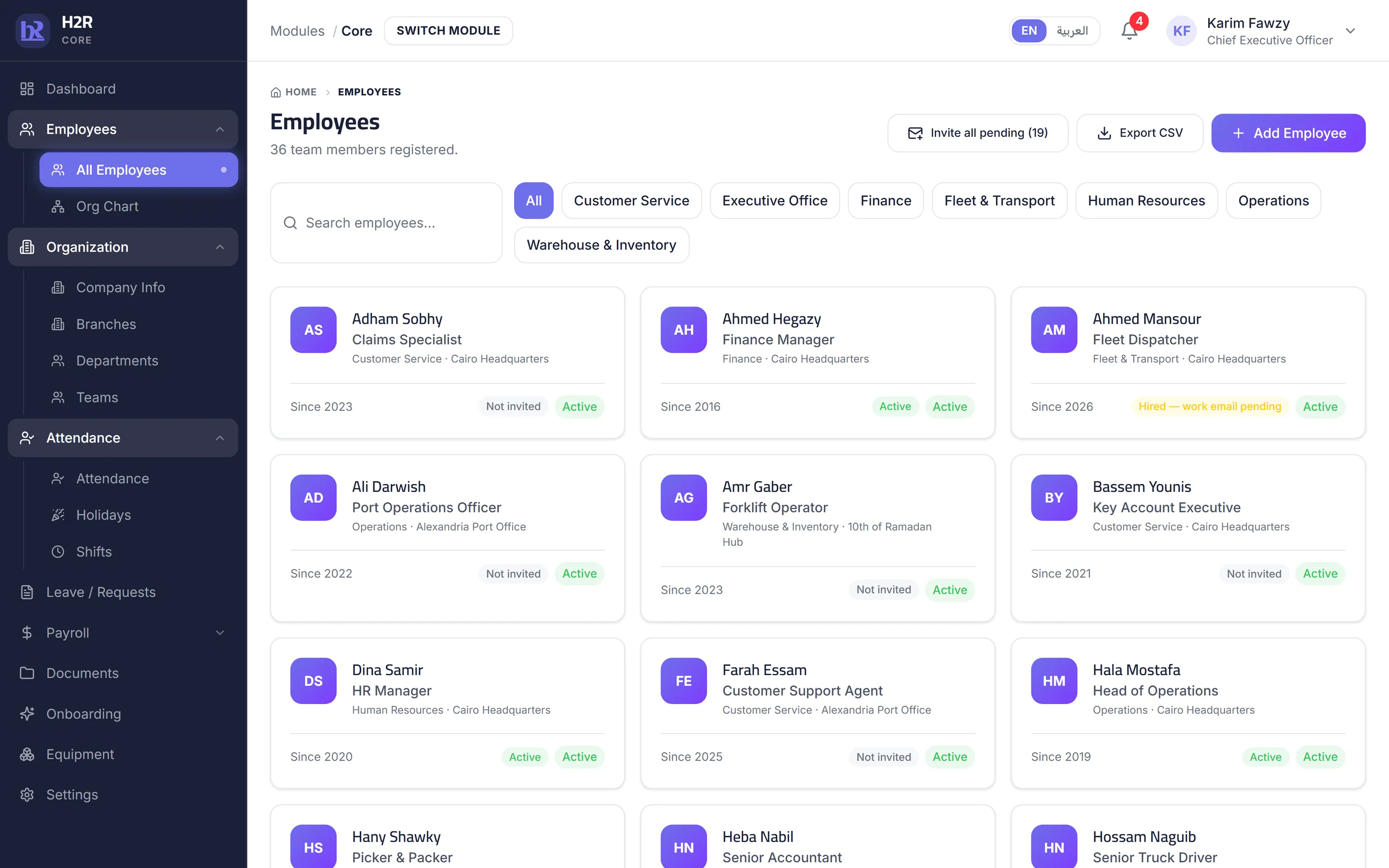
The Employees page in H2R Core is the directory of everyone in your organization. Each person has an employee record that other features (attendance, leave, payroll, documents) hang from, so it is worth getting the basics right at the start.
Note: There is no spreadsheet or bulk import screen today. You add employees one at a time. Employees hired through H2R Recruitment arrive automatically (see the last section).
Before you start
Create at least one branch and one department, because both are required on the employee form. You can do this under Settings, in Branches & Locations and Departments & Teams. If a person will report to someone, that manager should already exist as an employee.
Add an employee
- Open Employees and click Add Employee.
- The form is a wizard with seven steps: Main Data, Education, Experience, Certifications, Skills, Personal Info and Review. Use Next and Back to move between them.
- In Main Data, fill in the required fields: First Name, Last Name, Work Email, Position, Branch, Department and Joined Date.
- Optionally set Team, Employee Type, Work Type, Reports To and Probation Ends. Probation cannot end before the joined date, and nobody can report to themselves.
- Add education, experience, certifications, skills and personal details if you have them. These steps can be left empty and completed later.
- On Review, check the summary and click Add Employee. H2R confirms with the new employee number.
Important: Reports To matters for leave. The first approval level of a leave request goes to the requester’s direct manager, so an employee with no manager set cannot get a first-level approval.
Invite the person
The form has an Invite to H2R by email option. It sends an invitation to the work email so the person can sign in and see their own leave, attendance and payslips. You can do this later from the employee page instead. On the Employees page, Invite all pending invites every active employee who has a work email, is not linked to an account yet and was not invited before. It needs company-wide HR access.
The employee record
Click a name in the list to open the employee page. It holds the profile, job details, education, experience, certifications, skills, and an Access card showing whether the person has signed in yet. Salary structures, shift assignments, documents and onboarding all connect to this record.
Employees hired in Recruitment
When a candidate is accepted in H2R Recruitment, an employee record is created for you. It shows as Hired - work email pending. Assign the company work email, then invite the person to H2R. See accepted candidates become employees.
Troubleshooting
- A required field is highlighted. Go back through the steps; the form tells you which one needs attention.
- A person cannot see their own data. Their account is probably not linked to an employee record. Check the work email matches the one they sign in with, and send the invitation.
Questions people ask
Can I import employees from a spreadsheet?
There is no spreadsheet import screen in H2R Core today. Employees are added one at a time with the Add Employee form.
Does every employee need a login?
No. An employee record can exist without a login. Inviting the person to H2R is what lets them sign in and see their own attendance, leave and payslips.
Was this article helpful?
Tell us in one line what was missing and we will improve it.
Related articles
Still stuck?
Send us a message with what you were trying to do and the screen you are on.
Contact support