
Clock in and out, and take breaks
How employees clock in and out of work in H2R Core, record breaks and notes, and what to do when a time is wrong.
Last updated:
Employees record their working day on the Attendance page of H2R Core (titled Time & Attendance). The page works in the browser; the Android mobile app offers the same clock actions.
Clock in and out on the web
- Open Attendance.
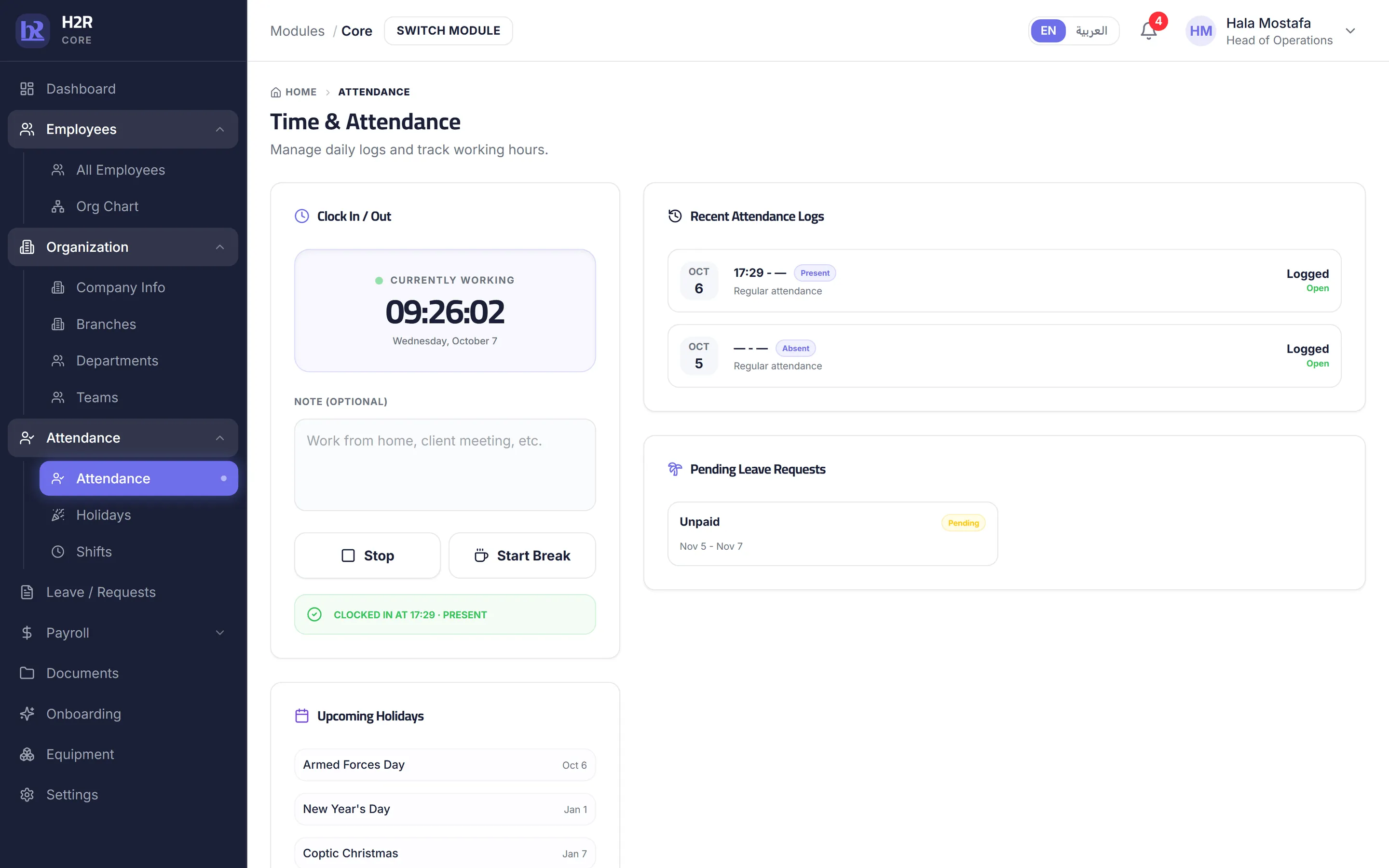
- In the Clock In / Out card, optionally type a Note, for example “Work from home” or “Client meeting”.
- Click Start Work. The card changes to Currently Working and shows the time you clocked in.
- When you finish, click Stop.
The page only works for people whose account is linked to an employee record. If you see a message saying nothing is linked, ask HR to add you with your work email.
Breaks
While you are working, click Start Break. The status becomes On Break. Click End Break when you return. Hours shown in your logs are net of breaks, for example “7.5 hrs net”.
Reading your logs
Recent Attendance Logs lists your days with status markers such as Complete, Open and Violation; open the entry to see the details. A day outside your organization’s work week shows as Day off. The page also lists Upcoming Holidays, and shows Pending Leave Requests to people who approve leave.
How a day is judged depends on your shift and on the organization’s work week. See shifts and holidays.
Corrections
If you forgot to clock out or a time is wrong, you request a correction on the entry with the new clock-in and/or clock-out time and a reason. In the product today, correction requests are made and decided in the Android mobile app: the employee sends the request from their own entry, and a manager or HR user with edit access to attendance approves or rejects it in the approvals area.
Some rules apply:
- You can only correct your own entries, and you cannot decide your own correction.
- A reason is required.
- Once payroll has published the pay period that contains the day, the entry can no longer be corrected.
- Approved corrections recalculate the day and are written to the audit trail.
Note: If your organization does not use the mobile app, ask your HR team how they want corrections handled. A web screen for corrections is not described here because it is not part of the product yet.
For managers
Managers and HR can see who is present, late, absent or on leave on Team Attendance, with date presets such as Today and This week, filters by department and branch, and Export CSV. Employees without that access do not see the page.
Troubleshooting
- The button does nothing or shows an error. Refresh the page and check you are not already clocked in on another device.
- A normal working day shows as Day off. Check the work week under Settings, or the employee’s shift working days.
Was this article helpful?
Tell us in one line what was missing and we will improve it.
Related articles
Still stuck?
Send us a message with what you were trying to do and the screen you are on.
Contact support