
Onboarding and offboarding checklists
How onboarding and offboarding work in H2R Core: tasks with owners, equipment hand-over and return, notifications, and what happens when Recruitment hires someone.
Last updated:
Joining and leaving are checklists of small tasks that belong to different people: HR, IT, the manager, the employee. H2R Core turns them into a process you can follow on one page, Onboarding.
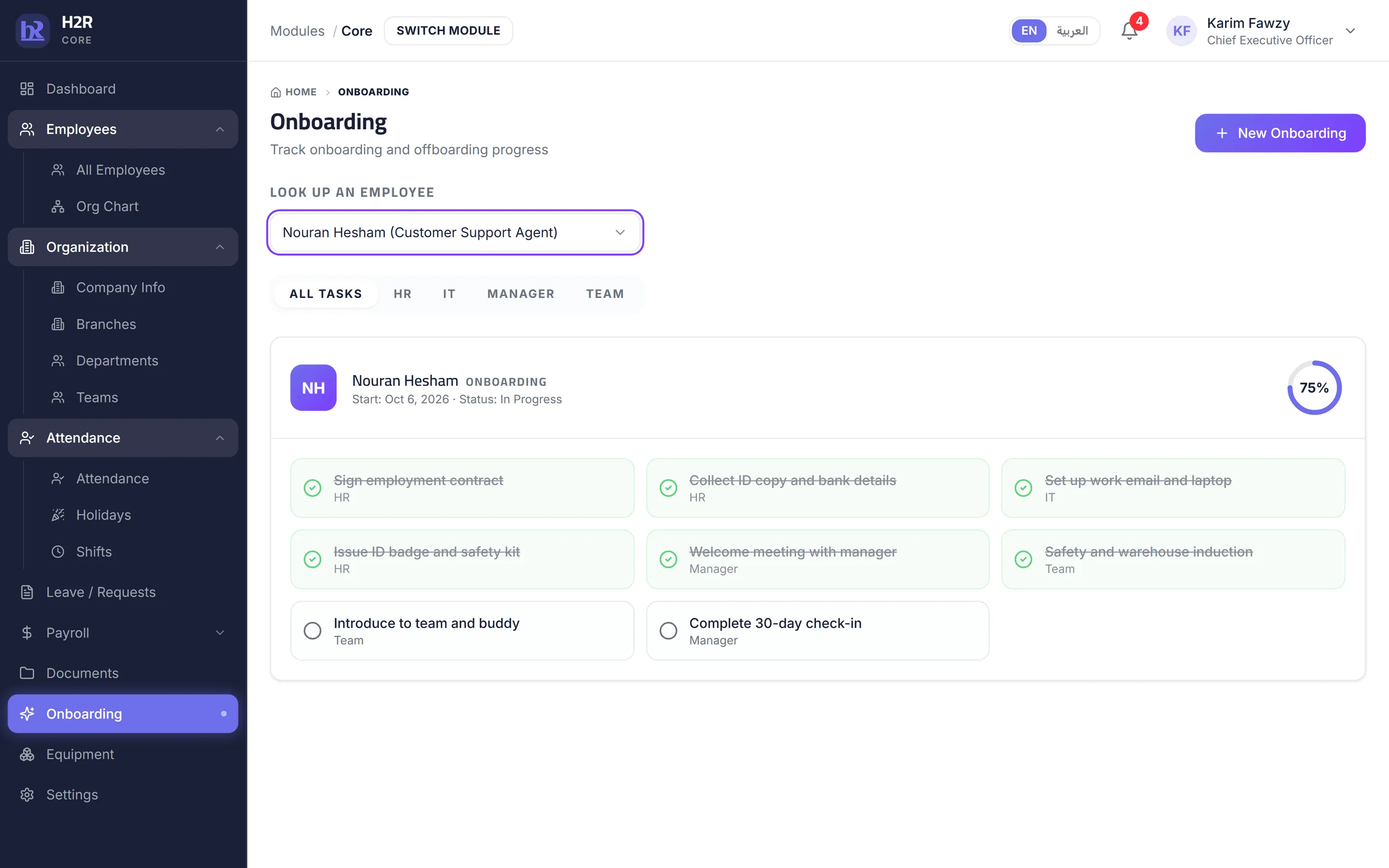
Start an onboarding
- Open Onboarding and click New Onboarding.
- Under Select Employee, choose the person and click Start Process.
If that employee already has an onboarding in progress, H2R reuses it instead of creating a duplicate. An organization can also be configured to start onboarding automatically whenever an employee is created; ask your administrator whether that is on for you.
The default checklist contains tasks such as Complete Personal Profile, Sign Employment Contract, IT Setup and Team Introduction, with due dates counted from the start. Each task has a category (HR, IT, Legal, Team or Manager) and an owner: the employee, the manager or the relevant team.
Work through the tasks
Use Look Up an Employee to open anyone’s processes, or My Onboarding to see your own. Tasks move from Pending to In Progress to Done, and Reopen task reverses a completed one. The process shows its progress and becomes Completed when every task is done. People who are assigned a task get an in-app notification (Onboarding task assigned), which each person can tune in their notification preferences.
Equipment
Track laptops, phones and other assets on the Equipment page. Use Add Asset to register an item, Assign to give it to an active employee with its condition, and Return when it comes back. If you mark a returned item Damaged, its status becomes Damaged instead of Available.
Employees hired in Recruitment
When a candidate is accepted in H2R Recruitment, Core creates the employee record and an onboarding with a system task: Assign work email and invite to H2R. Set the company email on the employee page, then press Invite to H2R. The task is marked as a system task and completes by itself once the email is set and the invitation is sent or the account is linked. See accepted candidates become employees.
Offboarding
When an employee is terminated, H2R automatically starts an offboarding process; there is no setting to switch this off. If the person still holds company equipment, the process includes a Return company equipment task listing the items. It is a reminder and does not block anything. Offboarding is tracked on the same Onboarding page, labelled Offboarding.
If the person qualifies for end-of-service pay under the policy you configured, a suggestion appears for review. Confirm the policy with your legal advisor.
Troubleshooting
- I cannot see the Onboarding page. It needs access to the Onboarding module in your role.
- The work-email task will not complete. Both a work email and a sent invitation (or a linked account) are required.
Was this article helpful?
Tell us in one line what was missing and we will improve it.
Related articles
Still stuck?
Send us a message with what you were trying to do and the screen you are on.
Contact support