
Org chart, branches and document management
Set up branches, departments and teams in H2R Core, read the org chart, and manage employee and company documents with visibility, expiry and versions.
Last updated:
Two things give H2R Core its structure: who sits where, and which files belong to whom.
Branches, departments and teams
Under Settings, open the structure pages:
- Branches & Locations: add each office with its address and time zone. Mark one as Main.
- Departments: each needs a Name, Code and Branch, and can have a Parent Department.
- Teams: a Team Name and Branch, optionally linked to a department.
You can Archive any of them. Archiving is blocked while a branch or department still has active employees, departments or child departments, so move people first. Employees are placed in this structure on the employee form.
The org chart
Org Chart draws the company hierarchy from the Reports To field of each employee, with the organization at the top. It is only as good as that data: if a manager is missing, the person appears at the top level.
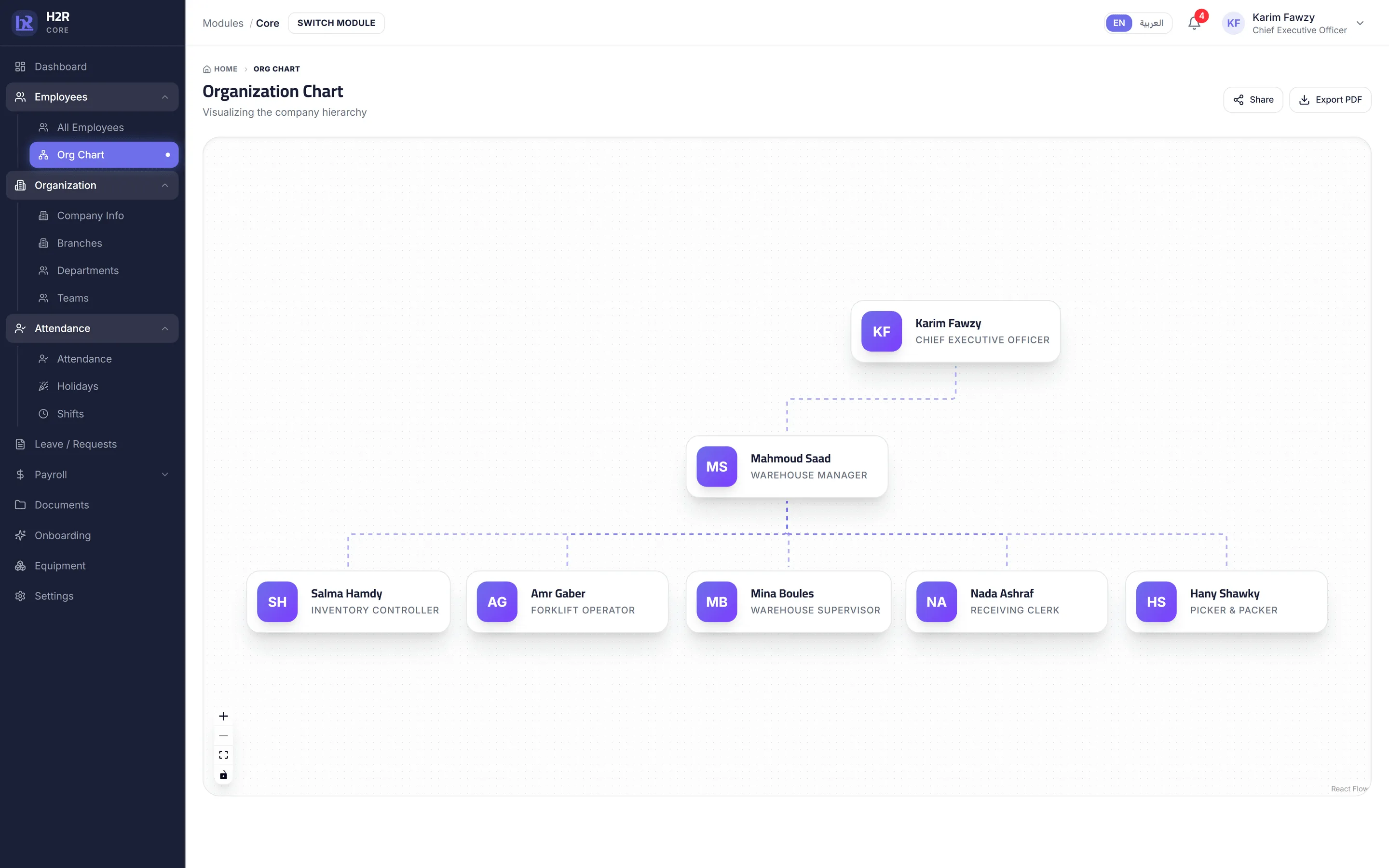
Use Share to share it and Export PDF to save a copy.
Documents
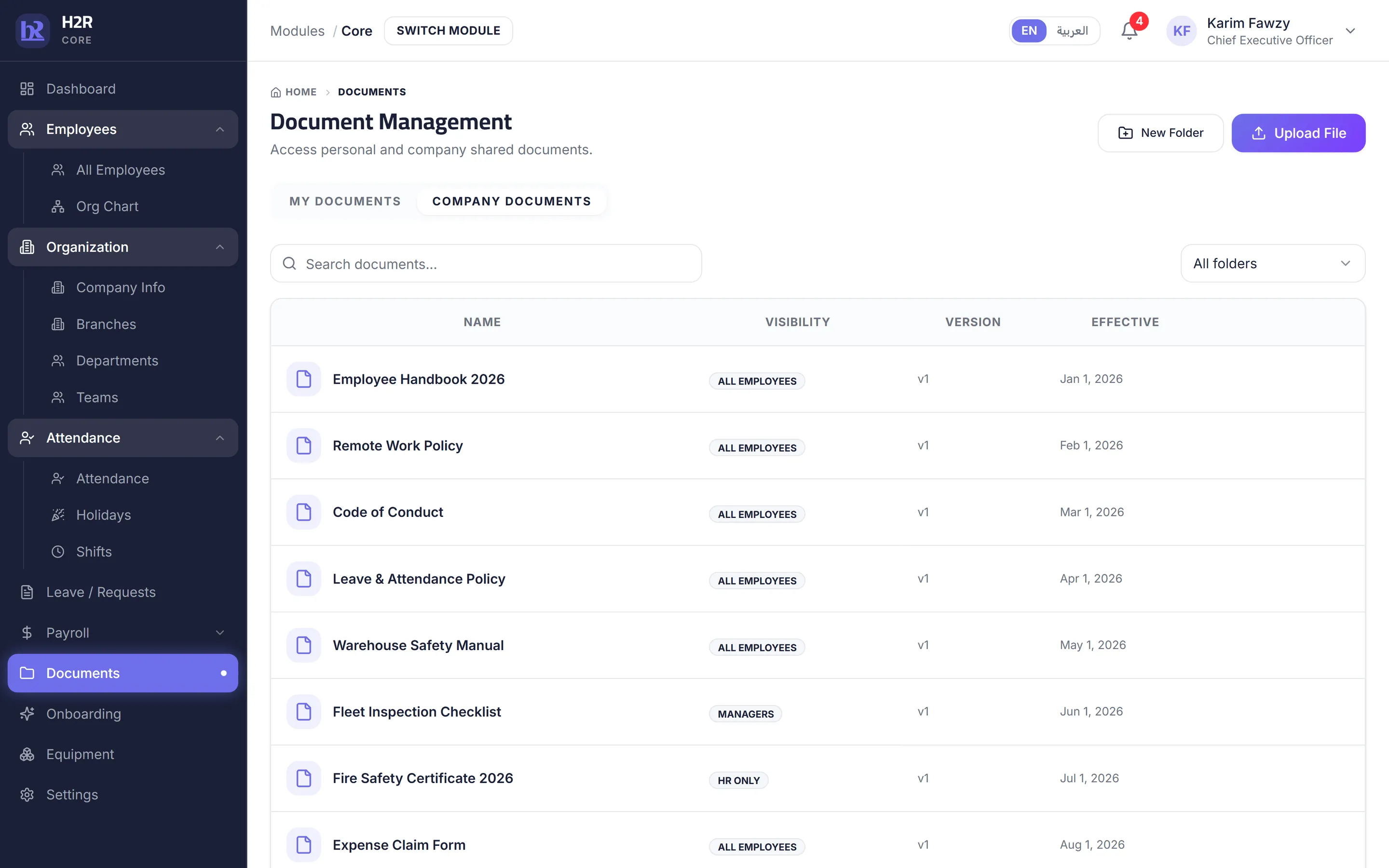
Open Documents (Document Management). There are two tabs.
- My Documents: your own files. Click Upload File, choose a Category and Type (for example Passport, National ID, Contract, Certificate, Visa or Work permit), set the Visibility, add an Expiry Date if it applies, and select the file.
- Company Documents: shared files such as the handbook. Upload with a Title, an optional category and folder, and an Effective From date. Use New Folder to organize.
Visibility
Choose who can see a file. Options include Employee and HR, HR only, Managers and All employees, depending on whether it is a personal or a company document. Pick the narrowest option that works.
Versions
When you upload a company document with the same Title in the same folder as an existing one, H2R saves it as a new version and the Version number increases. The earlier uploads are kept.
Categories and expiry
Under Settings > Document Categories, HR can add categories, mark them as required (informational), and require an expiry date with a default reminder, for example 30 days before. A category that is in use cannot be deleted; deactivate it instead.
Note: Company documents cannot be deleted from the screen today.
Troubleshooting
- Cannot upload to My Documents. Your account must be linked to an employee record.
- A person is missing from the chart. Check they are active and that Reports To is set correctly.
Was this article helpful?
Tell us in one line what was missing and we will improve it.
Related articles
Still stuck?
Send us a message with what you were trying to do and the screen you are on.
Contact support