
The payroll run lifecycle: create, calculate, approve, publish
Follow a payroll run in H2R Core from Draft to Paid: what each status means, who can approve, the Egypt preset, and how separation of duties works.
Last updated:
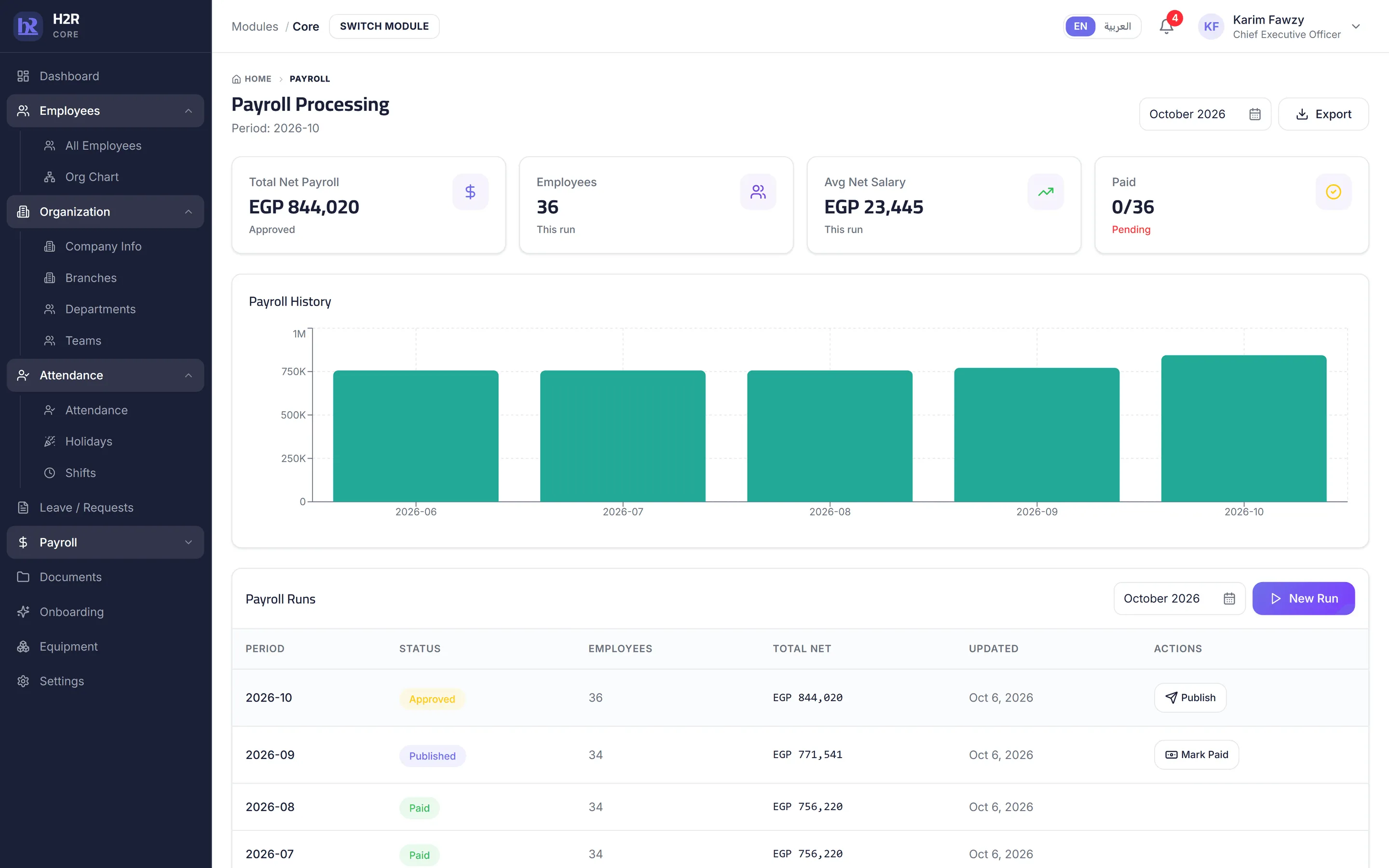
A payroll run in H2R Core is one pay period moving through a controlled sequence. Open Payroll > Processing (titled Payroll Processing) to work with runs.
Before the first run
- Give each employee a Salary Structure: base salary, pay frequency, effective date and any allowance or deduction components. An employee without an active structure gets an empty payslip with a warning, so check this first.
- Review Payroll Config under Settings: working days per month, rounding, overtime factors, social insurance, tax tiers and the end-of-service policy.
- Add percentage Deductions rules or fixed deductions on the Deductions page if you use them.
The Egypt preset
In Payroll Config, click Load Egypt defaults to pre-fill the form with suggested Egypt figures. Nothing is saved until you click Save Configuration; a banner reminds you it is not saved yet.
Important: The preset is a starting point, not tax or legal advice. Rates, brackets, insurance limits and entitlements change. Confirm every figure with your company’s accountant or legal advisor before you save.
The statuses
| Status | What it means | Next step |
|---|---|---|
| Draft | The run exists for a period | Calculate or cancel |
| Calculated | Payslips are computed from salary, attendance, leave and deductions | Recalculate, Approve or cancel |
| Approved | A second person has accepted the numbers | Publish |
| Published | Payslips are visible to employees and the period is locked | Mark Paid |
| Paid | Payment is recorded | Done |
| Cancelled | The run was cancelled before approval | None |
Step by step
- Click New Run and choose the period.
- Click Calculate. Review the payslips for the run: gross, deductions and net pay per employee. Fix inputs (attendance, leave, deductions, salary structure) and click Recalculate as often as needed.
- A different authorized person clicks Approve.
- Click Publish. Employees are notified that a payslip is available, and leave or attendance for that period can no longer be changed.
- After paying, click Mark Paid.
Separation of duties
By default the person who calculated a run cannot approve it; H2R shows a message asking for a different approver. Approving and publishing need company-wide payroll management access. Every step is recorded in the audit trail, with who did it and when.
If one person runs payroll alone, an Owner or Admin can tick Allow the same person to calculate and approve a payroll run in Payroll Config. It is off by default and every approval is still audited. See approval settings for small teams.
Troubleshooting
- Approve is missing. The run must be Calculated. Refresh the page.
- A figure looks wrong. Fix the source (shift, attendance, leave, deduction, salary structure) while the run is still Draft or Calculated, then recalculate. After publishing, the period is locked.
- End-of-service pay. Suggestions appear under End of Service when a terminated employee qualifies under your configured policy. They are not a legal determination.
Questions people ask
Why can't I approve a run I calculated?
Separation of duties is on by default: the person who calculated a run cannot also approve it. An organization with a single payroll person can switch the control off in Payroll Config.
Does H2R tell me the correct tax and insurance rates?
No. The Egypt preset only pre-fills suggested figures. Always confirm rates and rules with your accountant or legal advisor before saving.
Was this article helpful?
Tell us in one line what was missing and we will improve it.
Related articles
Still stuck?
Send us a message with what you were trying to do and the screen you are on.
Contact support