
Roles, scopes and who can see what
Understand H2R roles and scopes, assign a role to an employee in H2R Core, and check what a person can actually do.
Last updated:
A role says what a person can do. A scope says over whom or what. Together they decide whether someone sees only their own record, their team, or the whole company.
Organization level versus Core roles
Every member has an organization level on the platform: Owner, Organization admin or Member. Owners and admins already have full access to the module without a separate role assignment.
H2R Core then has built-in roles for day-to-day work:
| Role | What it is for |
|---|---|
| Employee | Sees and manages their own record and documents. Given to every active employee automatically. |
| Manager | Views their team’s directory, attendance and leave. Automatic for anyone with direct reports, or who heads a department or leads a team. |
| HR Partner | Supports managers and employees across HR processes. |
| HR Manager | Runs the organization structure, employee records and HR processes. |
| Payroll Manager | Owns payroll runs, with limited HR visibility. |
| Admin | Full access to the module; the audit log stays read-only. |
| Super Admin | Full access, including settings and the audit log. |
Employee and Manager are never assigned by hand. The built-in roles are fixed; you assign them to people.
Scopes
When you assign a role, you choose its scope: Whole company, Branches, Departments, Teams, Specific employees, Own records, or Reporting line. A scope limits the role, for example an HR Partner for one department only. Some roles require an explicit scope.
Assign a role
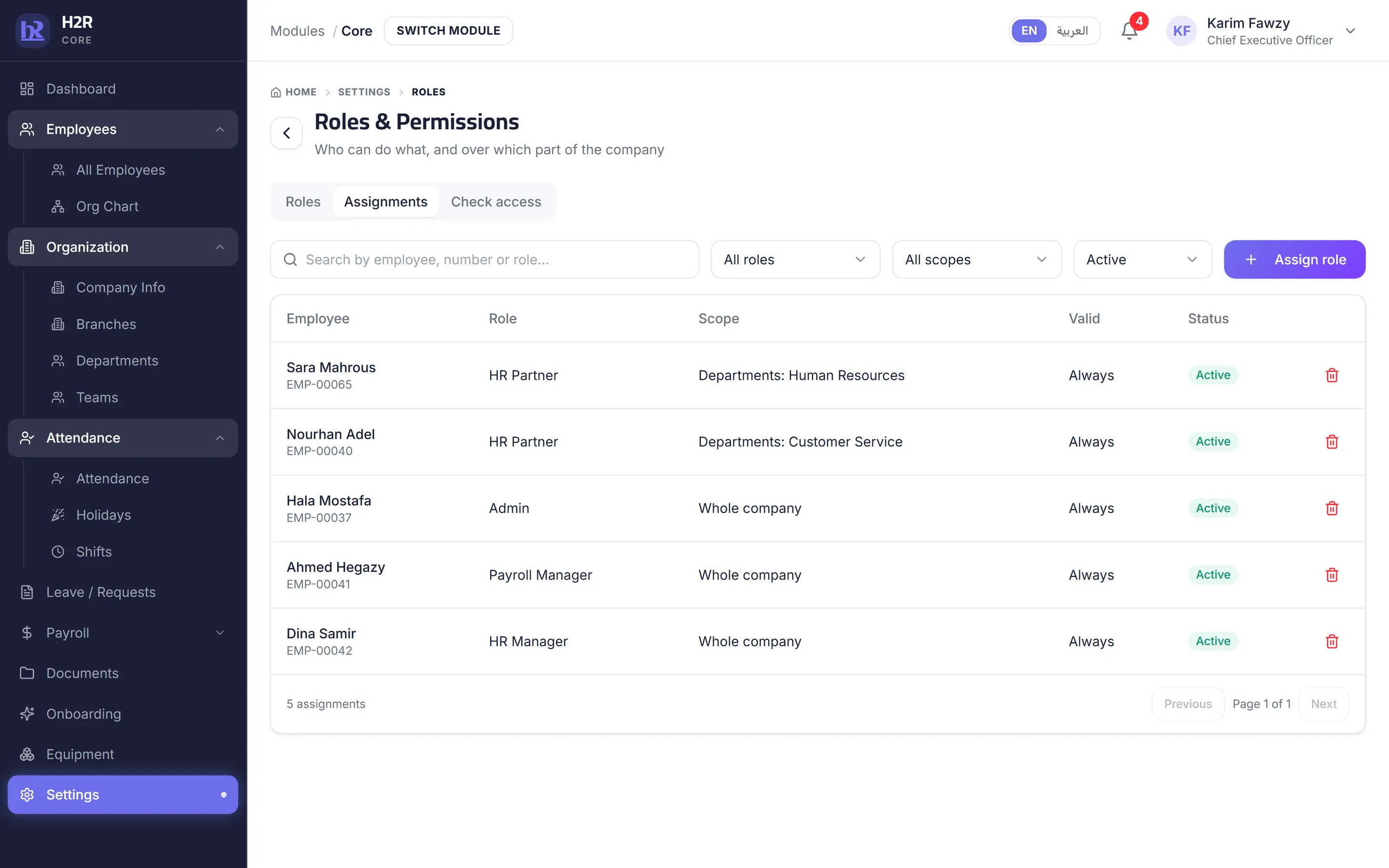
- In H2R Core open Settings, then Roles & Permissions.
- Open the Assignments tab and click Assign role.
- Choose the Employee, the Role and the Scope (with the branches, departments or teams it covers). You can also set start and end dates.
- Save.
The Roles tab explains each role and the access levels (None, View, Edit, Manage) per area; levels are cumulative. To remove access, use the revoke button on the assignment.
Check what someone can do
Open the Check access tab, pick an employee, and read the effective level per area and why they have it.
Important: The employee must be linked to a Platform account, so invite them first, see Invite people. Only a Super Admin can assign Admin or Super Admin, you cannot assign a role to yourself, and the last Super Admin cannot be revoked.
Common problems
- “Not linked to a Platform user yet”: send the invitation and wait for acceptance.
- “No access to Roles & Permissions”: ask a Super Admin, Admin or HR Manager.
- Duplicate assignment: the person already has that role with the same scope.
Was this article helpful?
Tell us in one line what was missing and we will improve it.
Related articles
Still stuck?
Send us a message with what you were trying to do and the screen you are on.
Contact support