
Set up two-factor authentication
Protect your H2R account with an authenticator app, save your recovery codes, and learn what happens when your organization requires 2FA.
Last updated:
Two-factor authentication (2FA) adds a second step to signing in: a 6-digit code from an authenticator app on your phone. Even if someone learns your password, they cannot sign in without that code.
Turn it on
- Sign in and open the module launcher, then click Security in the header.
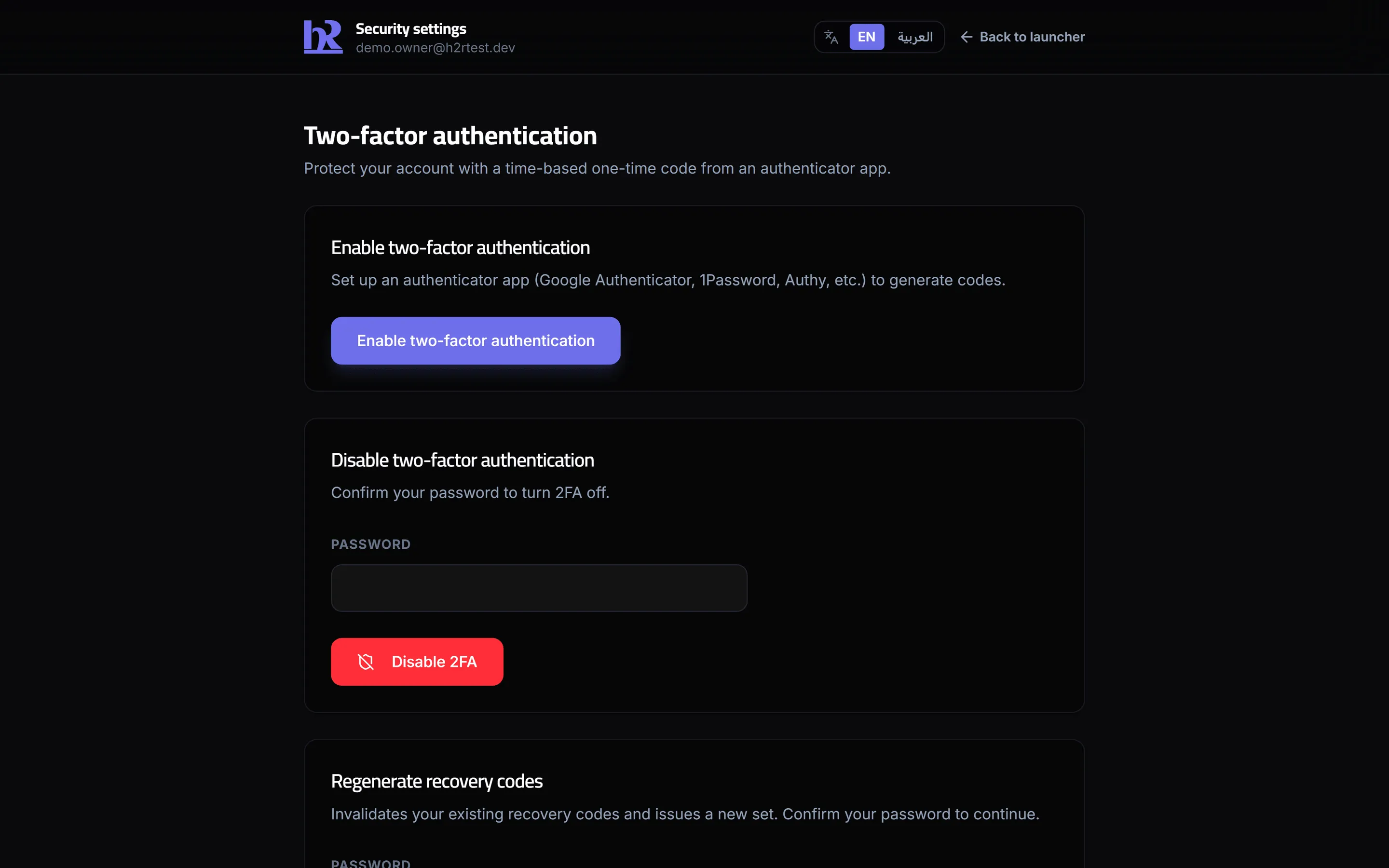
- Under Two-factor authentication, click to start setup. H2R generates a Setup key.
- In your authenticator app (Google Authenticator, 1Password, Authy and similar apps work), add an account and enter the setup key. If your app supports adding accounts by link, you can use the URI shown below the key.
- Type the current 6-digit code from the app and click Enable.
- H2R shows your recovery codes. Copy them with Copy all and store them somewhere safe. They are shown only once.
The page now reads that two-factor authentication is enabled on your account.
Signing in with 2FA
After your email and password, you see Two-factor verification. Enter the 6-digit code from your app and click Verify. Tick Remember this device if you do not want to be asked again on a device you trust.
If you lose your phone
Click Use a recovery code instead and enter one of the codes you saved. When you are in, you can issue a fresh set: on the Security page choose Regenerate recovery codes and confirm your password. This invalidates the old codes, so save the new ones.
Turn it off
On the Security page, use Disable 2FA and confirm your password. If your organization requires 2FA, you will not be able to sign in again until you re-enable it, see below.
When your organization requires 2FA
An Owner or Admin can require 2FA for the whole organization, see Organization security policy. If it is required and you have not enabled it:
- Admins and Members are stopped at sign-in with the message that the organization requires two-factor authentication, and a button Enable two-factor authentication.
- Set it up as above, then sign in again.
- Owners are exempt so the organization can never be locked out, but they are still encouraged to enable it.
Common problems
- “Invalid authenticator code”: check your phone’s clock is set automatically, then try the next code.
- “Too many attempts”: wait and retry.
- Session expired during verification: sign in again from the start.
Was this article helpful?
Tell us in one line what was missing and we will improve it.
Related articles
Still stuck?
Send us a message with what you were trying to do and the screen you are on.
Contact support