
Leave requests, balances and approvals
How to request leave in H2R Core, how balances are checked, how the one or two approval levels work, and how HR sets up leave types and policies.
Last updated:
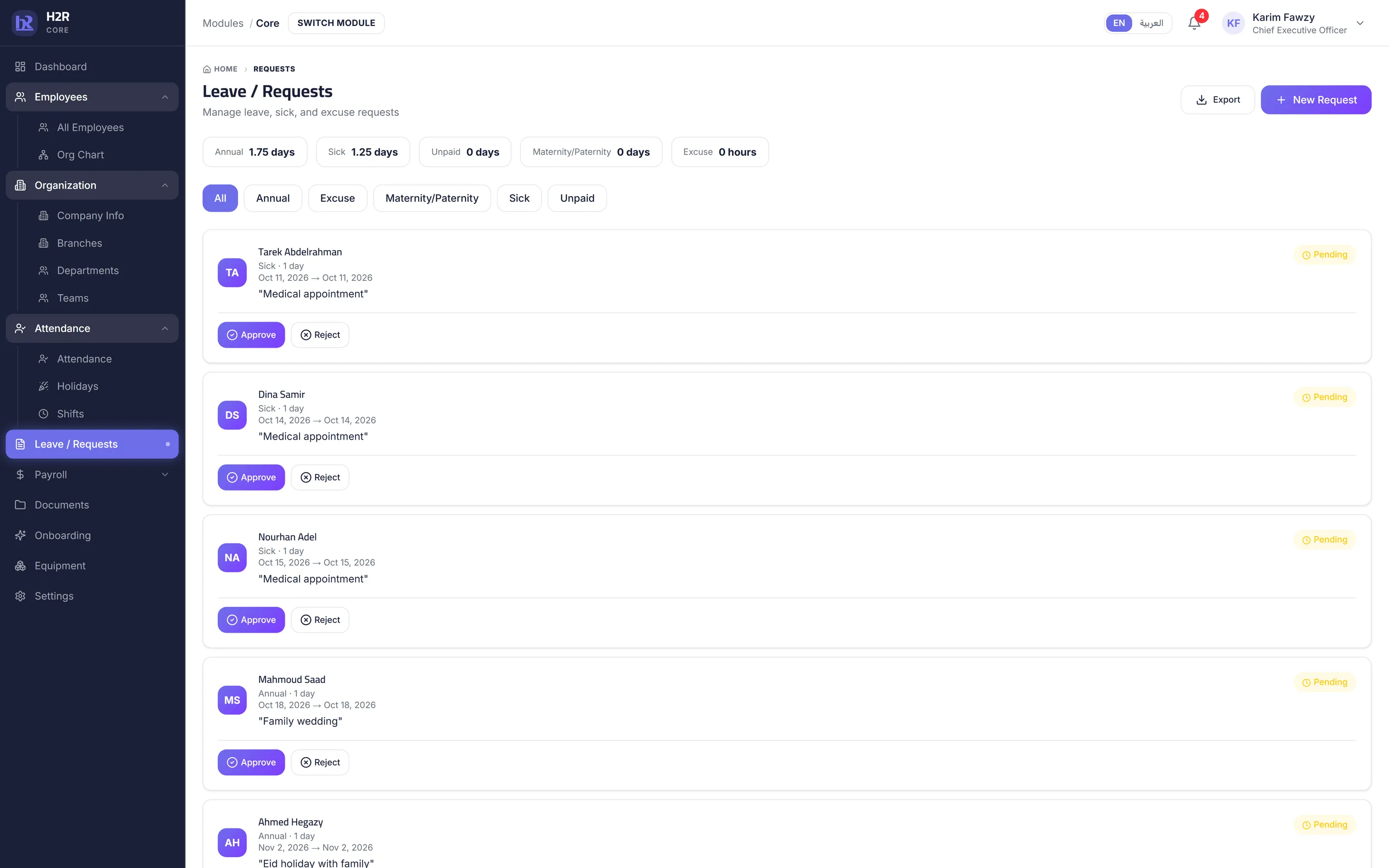
Leave in H2R Core lives on the Leave / Requests page. Employees submit requests, H2R checks them against the leave balance and the work calendar, and approvers decide in one or two levels.
Request leave
- Open Leave / Requests and click New Request.
- Choose the Request Type. The Available Balance appears.
- Pick the Start Date and End Date. For half days, use Half day (start) or Half day (end). Some types, such as excuses, are measured in hours instead; then you enter the date and Hours.
- Check the preview: Duration and Resulting balance. Non-working days (your organization’s weekend and holidays) are not counted.
- Add a Reason and click Submit Request.
H2R blocks a request when:
- it exceeds your balance, for paid leave types (This request exceeds your available balance.);
- it overlaps another pending or approved request of yours;
- it falls in a pay period that payroll has already published;
- the leave type has been archived.
You can cancel your own request while it is still pending.
Approval levels
Each leave type has either 1 level - direct manager or 2 levels - manager, then HR Manager.
- Level 1 goes to the person in your Reports To field. If nobody is set there, nobody can act as first approver, so set it on the employee record.
- Level 2 goes to HR: a user with manage-level access to leave that covers you.
Approvers see pending requests on the same page and click Approve or Reject. A rejection needs a reason. Nobody can approve their own request, whatever the settings. The employee is notified when the request is decided, and decisions are written to the audit trail.
Note: If you only see your own requests, no approvals are currently waiting on you.
Leave types and policies
Under Settings > Leave Policies (permission to manage it required), HR defines Leave Types. For each one you set:
- the unit (days or hours) and the default allowance;
- whether it is paid, and whether it requires approval;
- the accrual method: no accrual, monthly (annual days divided by 12), yearly, or on the work anniversary, with an annual amount;
- the carry-over limit and the maximum consecutive days;
- the number of approval levels.
Policies apply company-wide. The leave engine does not yet support per-branch policies, minimum notice, gender restrictions or required documents. Archive a type to stop new requests and accruals but keep history. Delete is only possible while nothing refers to it.
Troubleshooting
- My balance looks wrong. Check the accrual method and carry-over on the leave type; accrual follows the policy, not a calendar date you pick.
- The request cannot be submitted. Read the message: overlap, balance or published-period are the usual causes.
- A request is stuck. Check who it is waiting for: your manager (level 1) or HR (level 2).
Questions people ask
Who approves my leave request?
The first level is your direct manager, the person set in Reports To on your employee record. If the leave type has two levels, an HR manager approves second.
Can I request more leave than my balance?
For paid leave types, no: the request is blocked if it exceeds your available balance. Unpaid leave types do not check the balance.
Was this article helpful?
Tell us in one line what was missing and we will improve it.
Related articles
Still stuck?
Send us a message with what you were trying to do and the screen you are on.
Contact support