
Clock in, request leave and read payslips on mobile
How employees use the H2R Core mobile app: clock in and out, review attendance, request a correction, request leave, check balances and open payslips.
Last updated:
This article covers the employee side of the H2R Core mobile app. If you do not have the app yet, start with how to request it. The bottom bar has Home, Attendance, Leave, Notifications and More; managers also see Team.
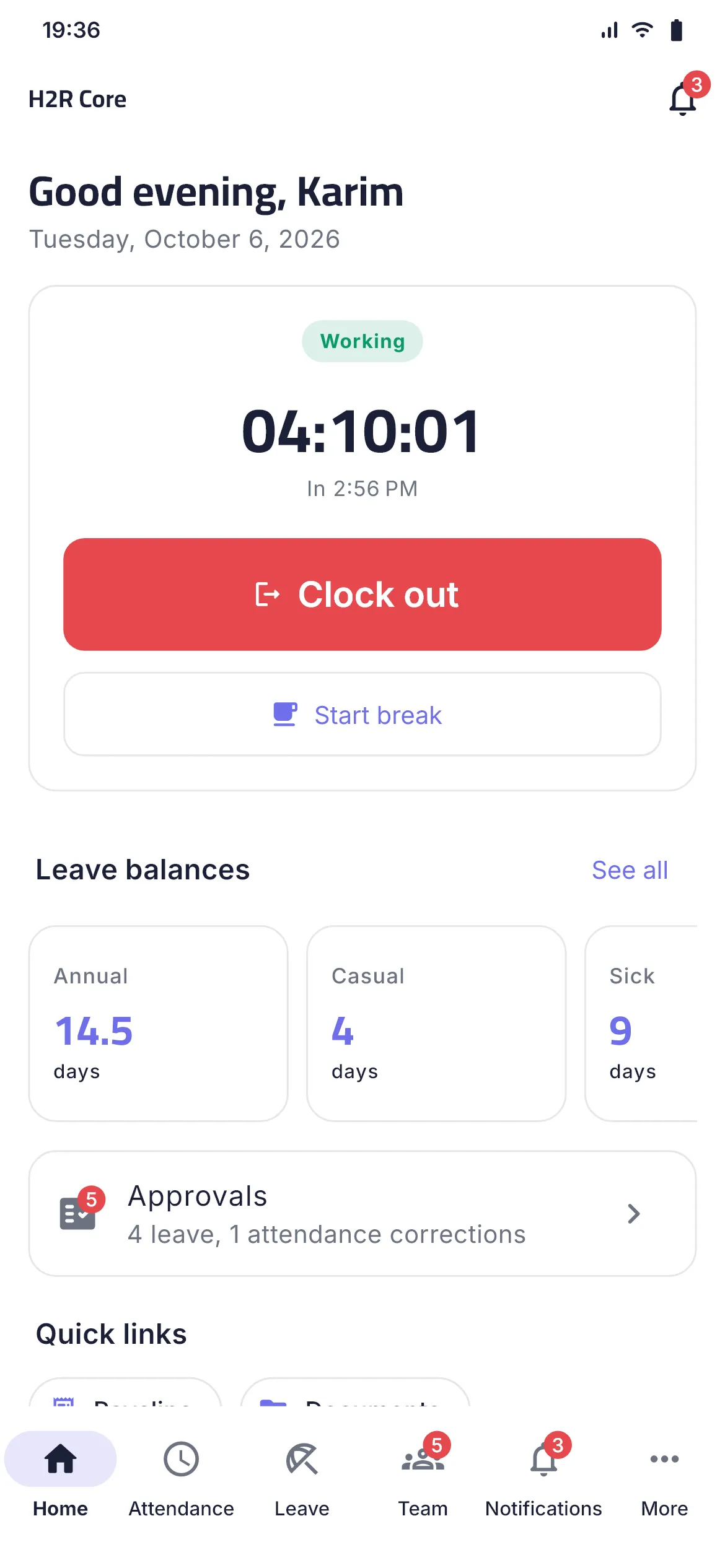
Home
Home greets you and shows today’s status, your leave balances, your next tasks and quick links. Use See all to jump to the full list behind a card.
Clock in and out
- Open Attendance.
- Tap Clock in when you start. The screen shows Working and the time you clocked in.
- For a break, tap Start break, and End break when you return.
- At the end of the day, tap Clock out and confirm. You can add an optional note.
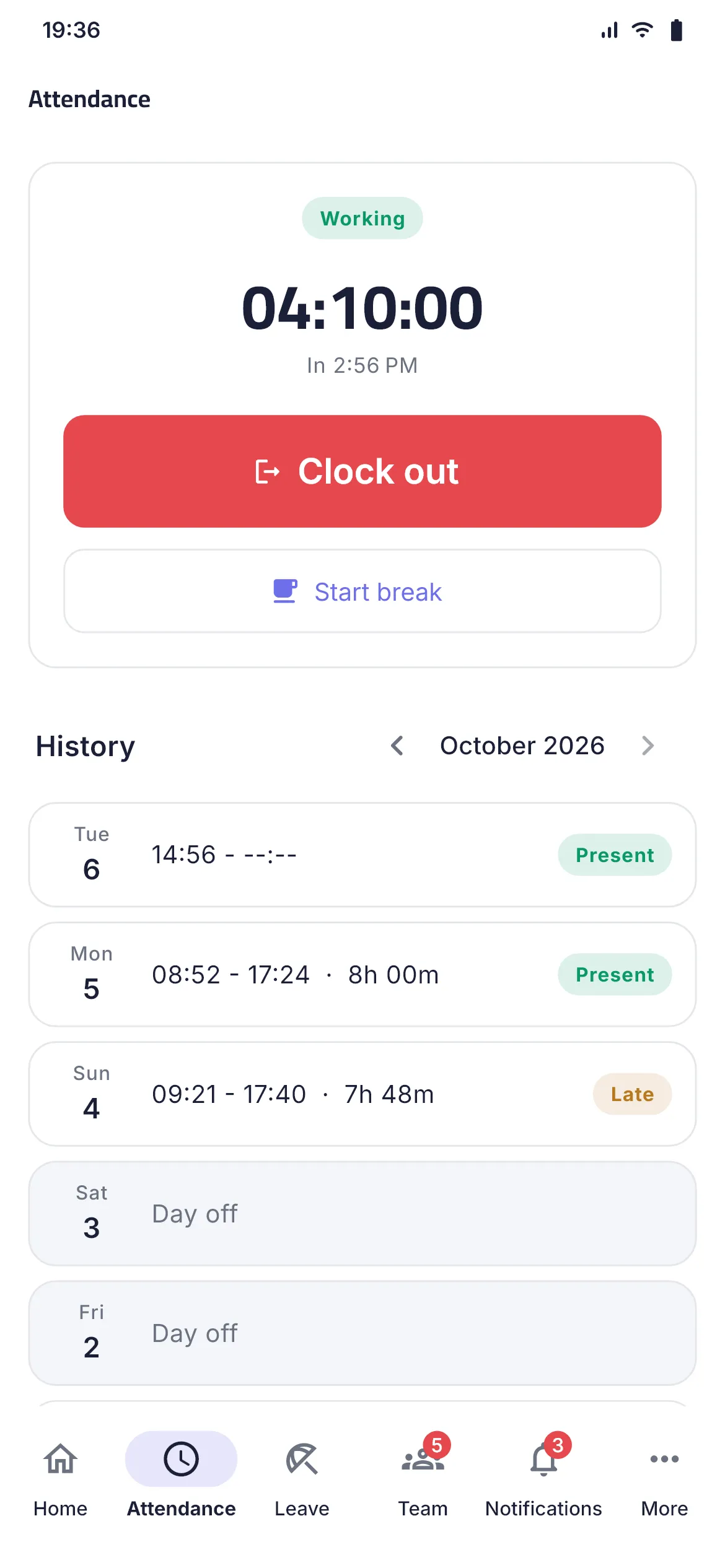
Below the clock is your History for the month, with a status per day such as Present, Late, Half day, Absent, On leave or Holiday. Which days count as work days follows your organization’s work week and shifts.
Fix a wrong entry
If a time is wrong, open the entry in your history and tap Request correction. Change the clock-in or clock-out time, give a reason, and tap Send request. Your manager or HR then approves or rejects it. You cannot approve your own correction, and a pay period that has already been published can no longer be corrected.
Leave
Open Leave to see Leave balances and My requests with their status: Pending, Approved, Rejected or Cancelled.
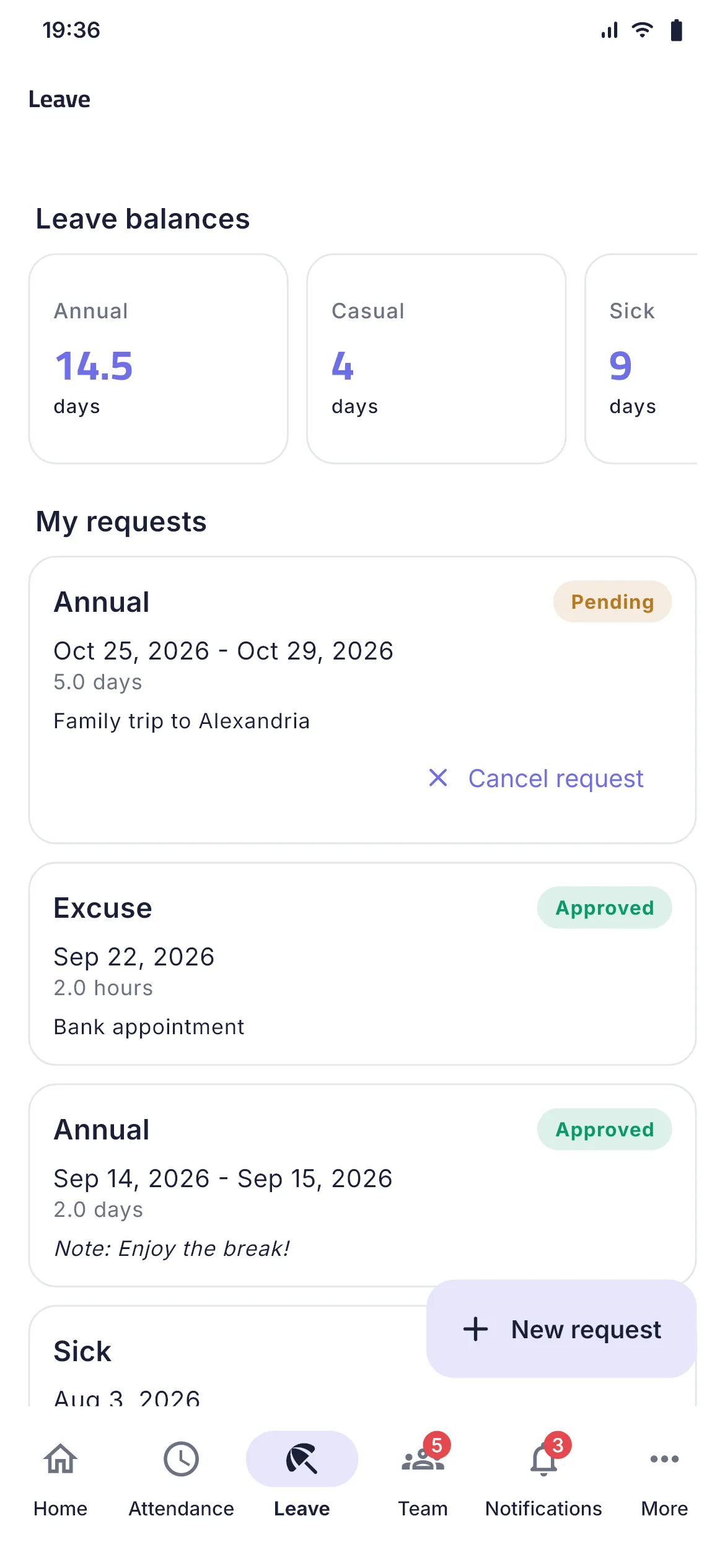
To ask for time off:
- Tap New request.
- Choose the Leave type and the From and To dates. You can mark the first or last day as a half day, and some types allow hours on a single day.
- The app previews how many days the request takes and what your balance will be afterwards. It warns you if the request is more than your available balance.
- Add a reason if you want, then tap Submit request.
A pending request can be withdrawn with Cancel request; your balance is restored. If a manager leaves a note when deciding, you see it on the request.
Payslips
Open More, then Payslips. Each payslip shows the net amount for the period. Open one to see gross pay, total deductions and net pay, or tap Open PDF to view or share the document.
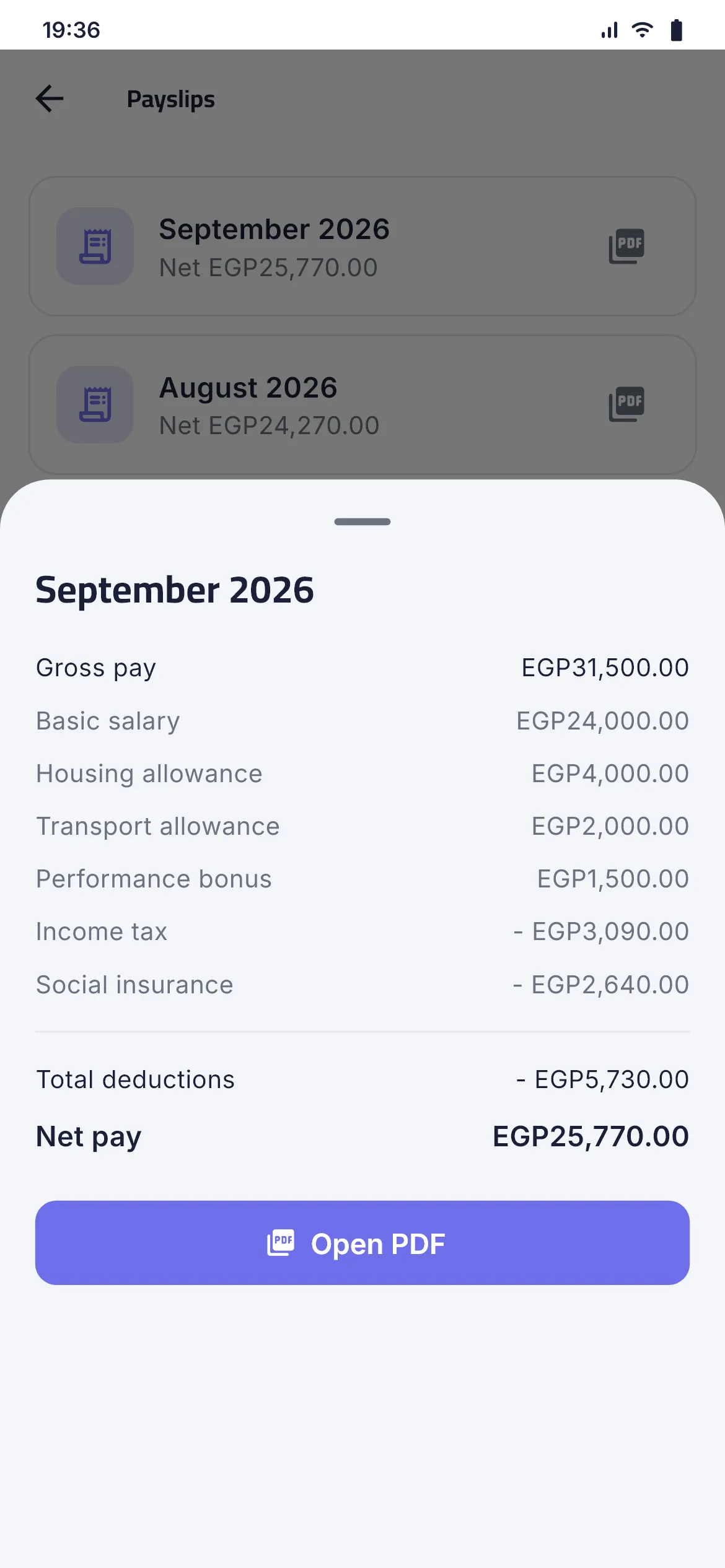
Note: Payslips appear only once your organization publishes payroll. Questions about an amount go to your HR or payroll team.
Profile and settings
From More you can also open Profile to update your contact details and emergency contact, and Settings to change the language (Arabic or English) and the theme. Documents and your Onboarding checklist are there too.
Tip: If the phone is offline, the app shows saved data and says so. Actions such as clocking in need a connection.
Questions people ask
What if I forgot to clock out?
Open your attendance history, pick the entry and use Request correction. Enter the right times and a reason. Your manager or HR approves or rejects it.
Why don't I see any payslips?
Payslips appear after your organization publishes the payroll run. Until then the Payslips screen shows that there are none yet.
Was this article helpful?
Tell us in one line what was missing and we will improve it.
Related articles
Still stuck?
Send us a message with what you were trying to do and the screen you are on.
Contact support