
Approve leave and attendance corrections on mobile
Managers can approve or reject leave requests and attendance corrections from the H2R Core mobile app, and see who is working, on leave or not in yet today.
Last updated:
Managers can handle the requests waiting for them without opening a laptop. The Team tab in the H2R Core mobile app has two parts: your Approvals and a live view of your team today. You see only people inside your scope, which is set by your role. See Roles and access.
Review pending approvals
- Tap Team in the bottom bar. A summary shows how many leave requests and attendance corrections are waiting.
- Open Approvals. Two tabs separate Leave and Corrections.
- Tap a request to open its details.
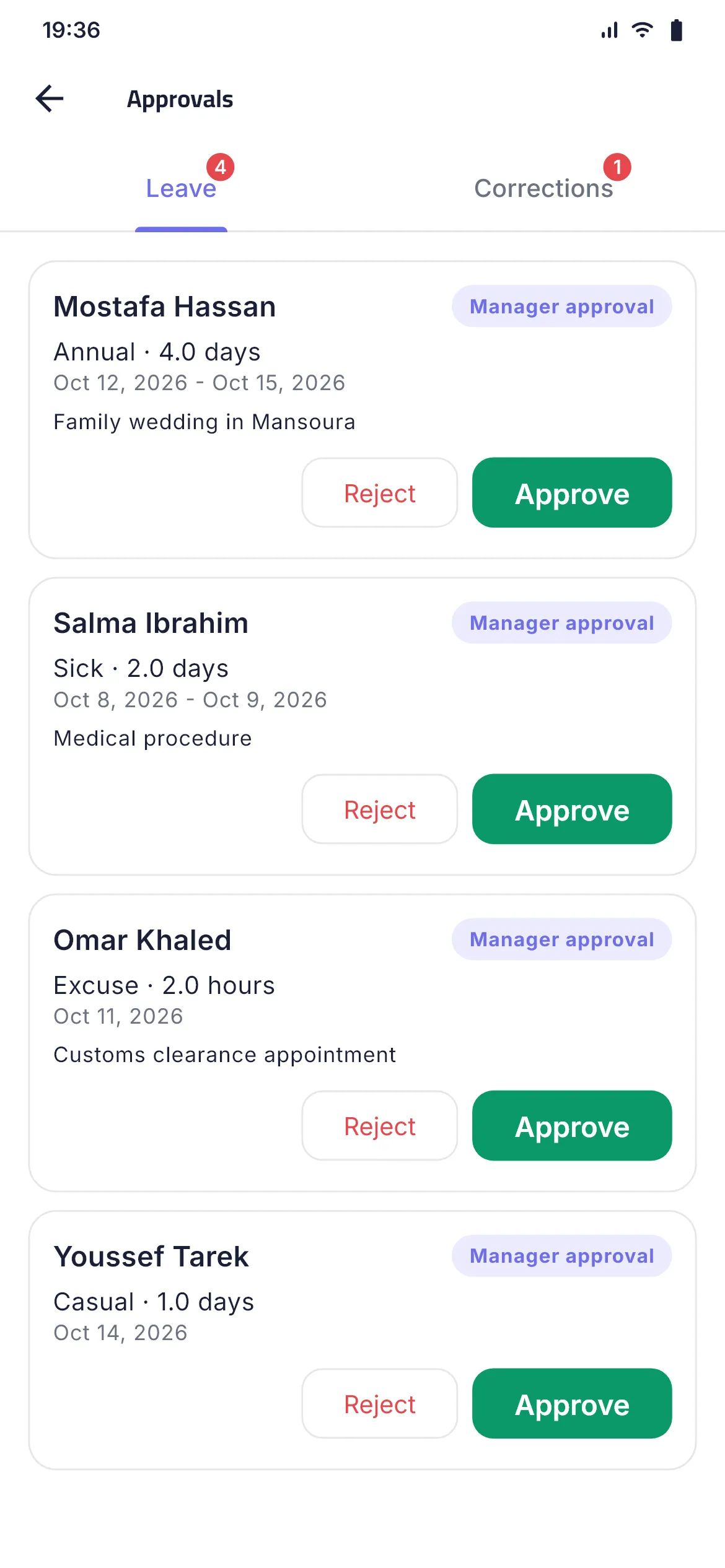
Leave requests
The detail screen shows the employee, leave type, dates, duration, any half days, the employee’s balance and their reason. If your organization uses a multi-step chain, it also shows the current step, for example Manager approval or HR approval, and which step this is out of the total.
- Tap Approve to approve. You can add an optional note.
- Tap Reject to reject. A reason is required, and the employee sees it.
Attendance corrections
When an employee asks to fix a clock-in or clock-out time, the Corrections tab shows the recorded times next to the requested times and the employee’s reason. Compare them, then approve or reject. If you do not have permission to review corrections, the app says so.
Important: If someone else already decided the request, the app tells you it is no longer waiting for your decision. Refresh the list and move on.
See who is in today
The top of the Team screen shows today’s picture for your people:
- Working: clocked in right now.
- Finished: done for the day.
- On leave: away on approved leave.
- Not in yet: has not clocked in.
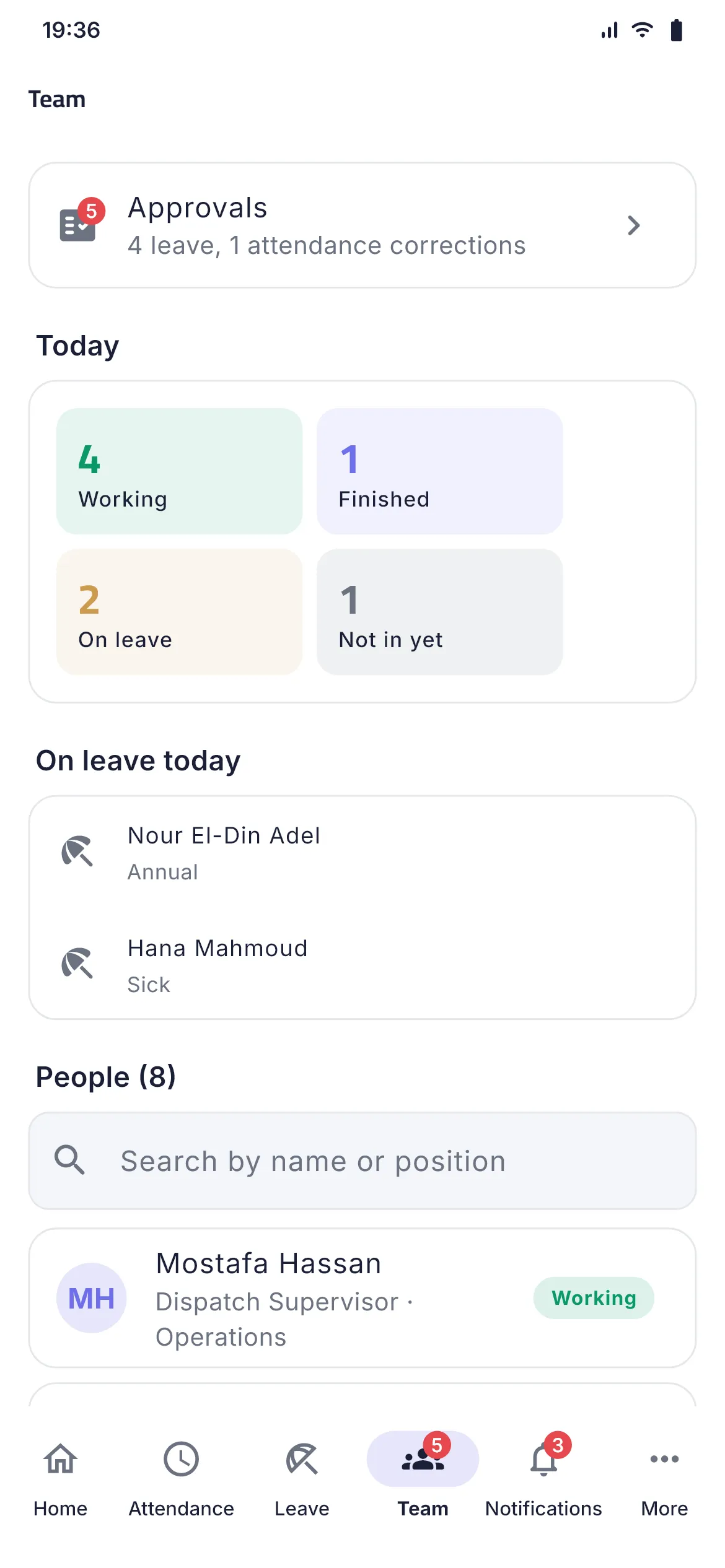
Below that is the people list. Use the search box to find someone by name or position, and tap a person to see their department, employee number, work email, phone and joining date. You can call or email from there. If you have no direct or indirect reports in your scope, the screen says so.
Tips for managers
- Check approvals at the start and end of the day so requests do not sit.
- Write a short reason when rejecting; it saves the employee a follow-up question.
- Small teams where one person is both manager and owner can adjust approval rules. See Approval settings for small teams.
Note: If your organization’s subscription has expired, the app is read-only and decisions are disabled until it is renewed.
Questions people ask
Why don't I see the Team tab?
The Team tab is for people who have reports or approval rights in their scope. If you expected it, ask your administrator to check your role and scope.
Can I approve my own request?
No. You cannot decide your own attendance correction, and approval chains are set by your organization.
Was this article helpful?
Tell us in one line what was missing and we will improve it.
Related articles
Still stuck?
Send us a message with what you were trying to do and the screen you are on.
Contact support