
Create, assign and review assessments
Build a candidate assessment in H2R Recruitment with AI-generated or manual questions, assign it to candidates, and review scores and monitoring data fairly.
Last updated:
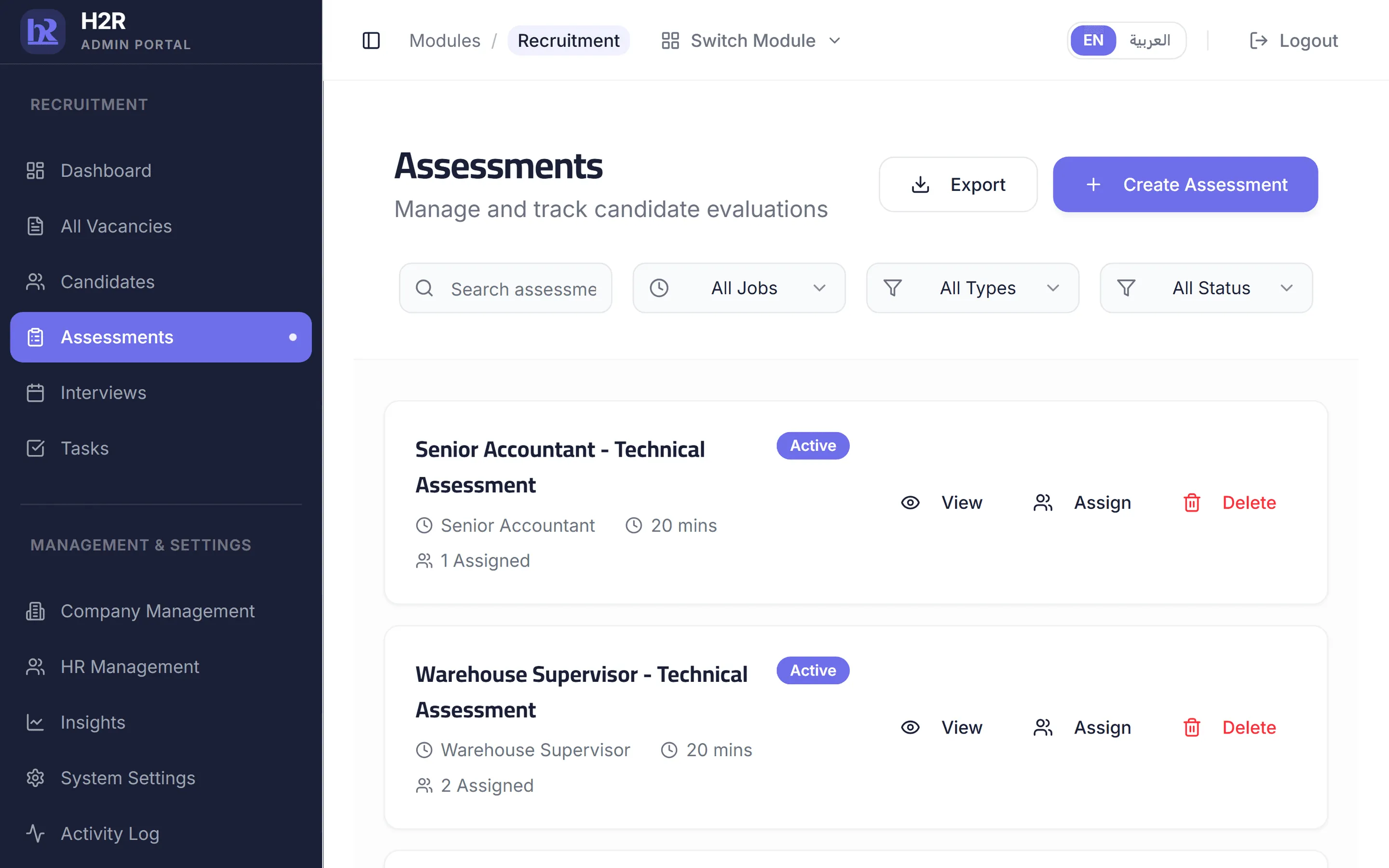
An assessment is a timed online test linked to a vacancy. The AI can generate the questions from the job description; you decide what to keep, who takes it and how to read the result. Open Assessments in the Recruitment menu to start.
Create an assessment
Click Create Assessment. A four-step flow follows.
- Basic Info. Enter the Assessment Title, choose the Linked Vacancy, the Assessment Type (Technical, Behavioral, Creative or Cultural) and the Duration in minutes. Turn on Webcam Monitoring if you want it. Show Results Immediately, when off, shows candidates only a submission confirmation, so you review results privately.
- Generate Questions. The vacancy’s description, responsibilities and qualifications are pulled in automatically. Set the Total Questions (between 20 and 40) and split them into Multiple Choice (MCQ) and True / False; the two must add up to the total. Click Generate Assessment Questions. The difficulty mix is set automatically. If you prefer, click Skip and write the questions yourself.
- Review. Read every question. AI-generated ones are marked AI Generated and can be edited. Use Add Question for your own, in formats such as multiple choice, text answer, coding challenge, scenario or open-ended, each with points.
- Preview & Publish. Check how candidates will see it, then Save as Draft or Create & Activate.
Tip: Read the answer keys too. A generated question can be ambiguous or have a debatable “correct” answer, and it is much easier to fix before anyone takes the test.
Assign it
On the assessment list click Assign. Candidates from the same vacancy are listed with rating and match; search by name and select them. Click Assign to send. You can Unassign a candidate if you assigned them by mistake.
What the candidate sees
Candidates find the test under My Assessments, with a due date and a Start Assessment button. A guidelines screen explains that tab switching is monitored, that webcam monitoring applies when enabled, and that they should submit before the timer ends. They can move freely between questions and use Resume if the session is still open. After submitting they see either their result or a confirmation, depending on your setting.
Review the results
Open the assessment to see Candidate Results: status (Assigned, In Progress, Completed or Expired), score and completion date. A candidate’s own page has an Assessments tab with points, Passed or Below Threshold, and a note if the session expired without submission.
With webcam monitoring on, Webcam Monitoring Summary shows average attention, violations, no-face and gaze-off counts and a risk level. A violation is flagged when no face is detected, attention is below 50 or gaze is off-centre.
Important: Monitoring data is a signal to look at, not proof of wrongdoing. A weak camera, glasses or a shared room can trigger flags. Talk to the candidate before drawing conclusions, and decide with people, not with a score alone.
For practical work such as a case study or design task, the vacancy’s Tasks tab lets you create task templates, assign them, and score submissions from 0 to 100.
Troubleshooting
- Cannot continue past Basic Info. Title, vacancy, type and duration are all required.
- Generate shows a sum error. MCQ plus True/False must equal the total.
- A candidate says the session expired. Check the duration and due date, and assign again if appropriate.
Was this article helpful?
Tell us in one line what was missing and we will improve it.
Related articles
Still stuck?
Send us a message with what you were trying to do and the screen you are on.
Contact support