
Create and run a review cycle
Set up a review cycle in H2R Performance: template and rating scale, participants, self, manager and peer stages, calibration, release and closing.
Last updated:
A review cycle is one round of performance reviews: who takes part, which questions they answer, which stages run, and when results are shared. HR or an admin sets it up under Review Cycles in the Admin Portal (group Performance Setup).
Before you start
Two things must exist before a cycle can go live:
- a Review Template, created under Templates. Add questions (written answer, rating scale, yes-no or multiple choice), click Create Template, then Publish it;
- a Rating Scale, listed under Rating Scales.
Create the cycle
- Open Review Cycles and click New Cycle.
- Enter a Cycle Name, a Type (Annual, Quarterly or Mid-Year) and the start and end dates.
- Choose the Review Template and Rating Scale.
- Decide which stages are used: Self Review, Manager Review, 360 Feedback and Calibration.
- Click Create Cycle. It is saved as a Draft.
Activate and add participants
Open the cycle with Manage and click Activate. Select the employees who take part. The template and scale are pinned at this point, so later edits to the template do not change a running cycle. You can add people afterwards with Add participants.
What happens in each stage
The phases are Self Review, Peer Feedback, Manager Review, Calibration and Release.
- Self review. Employees open Performance, then My Review, and complete the Self Assessment. They can Save draft any time; submitting locks the answers.
- Peer feedback. Only when 360 Feedback is on. See 360 feedback.
- Manager review. Managers open My Team, choose an employee and click Start Review. The rating is computed from the answers. A manager can override it, with a written justification if the change is more than one scale step.
- Calibration. HR compares the Computed, Manager and Final ratings across people and records an Adjust with a new value and a reason. A potential rating can be set here too; the 9-box grid uses it. Click Close Calibration when finished.
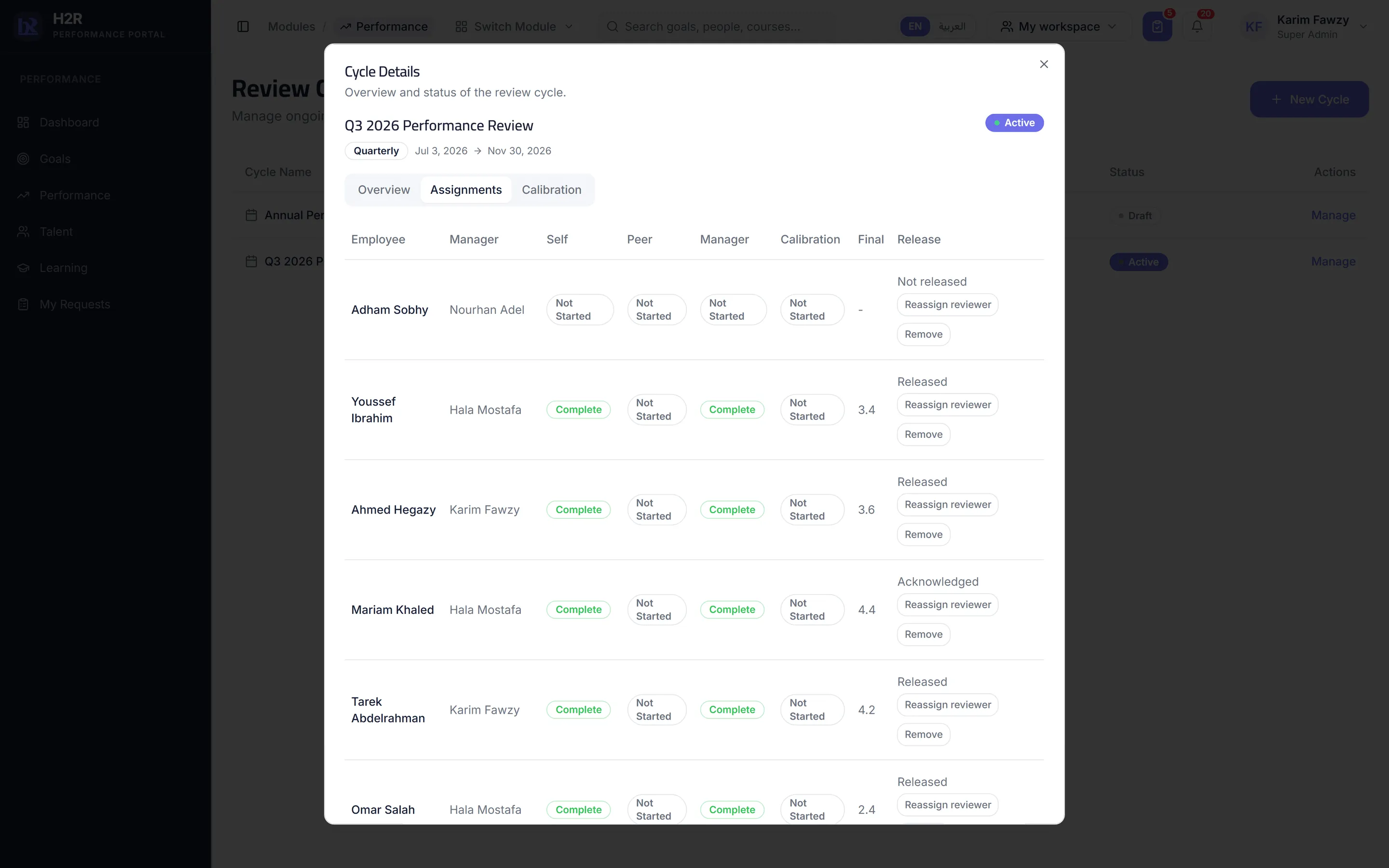
- Release. In the Assignments tab, click Release for each person. A final rating must exist first. Employees then see Your Result and can Acknowledge review.
Track progress in the cycle’s Overview: participants, reviews submitted and completion rate. You can Reassign reviewer when someone changes manager, or Remove a participant.
Close the cycle
Click Close cycle when the work is finished. Only an Active cycle can be closed. Required stages that were never completed are marked Skipped, the final rating defaults to the manager rating where none was set, and a snapshot of the results is kept. Afterwards the cycle can be Archived.
Tip: Release only after calibration is closed, so employees never see a rating that is about to change.
Troubleshooting
- Activate is disabled or fails. Check that a template and a rating scale are selected on the cycle.
- An employee does not see a review. They must be a participant. Add them with Add participants.
- Cannot release. The manager stage must be submitted so a final rating exists.
- The page says the feature is locked. Review cycles depend on your organization’s plan; ask your account owner.
Was this article helpful?
Tell us in one line what was missing and we will improve it.
Related articles
Still stuck?
Send us a message with what you were trying to do and the screen you are on.
Contact support