
Request types, approvals, SLAs and escalation
How employees submit HR requests in H2R Performance, how approvers decide them, and how admins define request types, approval SLAs and escalation rules.
Last updated:
A request type is a form plus a route: it defines what an employee fills in and who has to approve it. Employees choose from the catalogue, approvers decide, and admins shape the types. Goals use the same approval machinery, so pending goals and requests share one inbox.
Submit a request
- Open My Requests and click Submit New Request.
- Search, or filter by category (Leave, Compensation, Grievance, Work Arrangement, Performance, Offboarding, Documentation, Custom). Each card shows the number of approver steps and the average SLA in hours, or Instant approval.
- Fill in the form. On the right, Approval Route shows who will decide and the Estimated total decision time, which assumes every approver answers at their deadline.
- Click Submit Request.
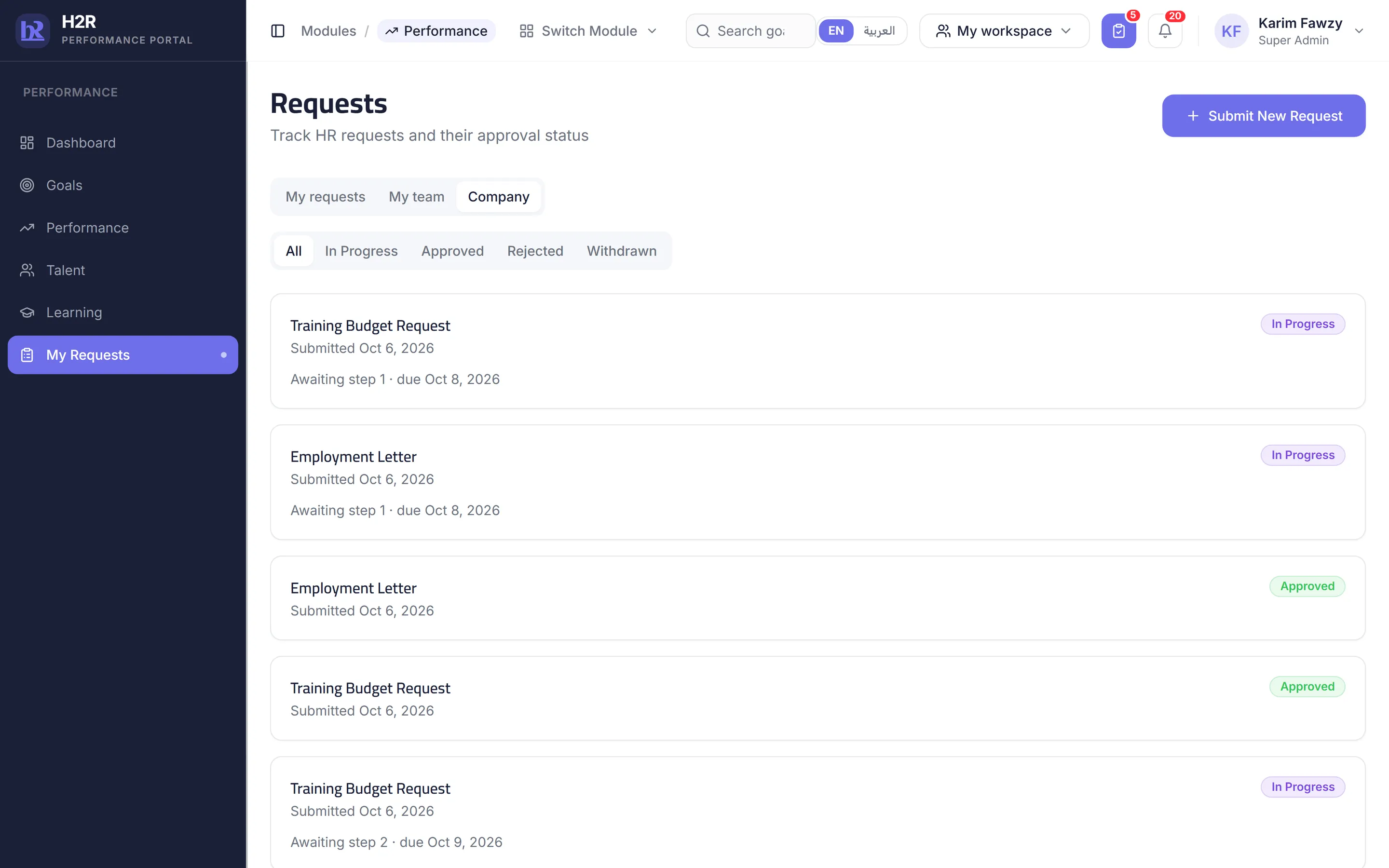
Track the request in My Requests. Statuses are In Progress, Approved, Rejected and Withdrawn; use the My requests / My team / Company scope to widen the list. Open a request to see each approval step. Click Withdraw if you no longer need it; you can submit a new one later.
Approve or reject
Approvers open Pending Approvals. Use Assigned to me or Company, and the Goals and Requests tabs. Click Approve (a comment is optional) or Reject (a comment is required, and rejecting ends the request). Approval History lists decided items.
Define a request type (admins)
Open Request Types under Workflow Config and click New Request Type. The wizard has seven steps: Basics, Pattern, Approver Chain, SLA & Escalation, Form Builder, Special Routing and Review & Publish.
- Pattern: Single Approver, Sequential Multi-Approver (at least two steps, in order), Bypass Manager (straight to HR or another role) or Self-Service (No Approval).
- Approver Chain: pick a role (Manager, Department Head, HR, Finance, IT and others) and a scope, and set SLA hours per step.
- Form Builder: short text, long text, number, date, dropdown or file upload fields, with optional validation.
- Special Routing: bypass the manager, restrict visibility to the approvers, require Finance sign-off, or require both managers for a transfer.
Roles such as HR, Finance and IT resolve to Approver Groups (for example HR Team), created under Approval Chains. A fallback group receives any step whose approver cannot be found.
Standard types go live when published unless Require sign-off before publishing is on; Restricted types always need two sign-offs. Changes apply to new submissions only, and Version history keeps the earlier versions.
SLAs and escalation
Each step has its SLA in hours. SLA Settings sets targets for goal approval, review submission and feedback response, in hours or business days. Under Escalation Rules, define which approvals escalate (for example goal-approval or a step role), after how long, and to which role or group. Today the escalation worker applies every rule as add approver plus a notification, whichever action is selected. Escalated approvals are marked Escalated.
Note: In small teams with no manager on record, a request is routed to an admin instead of failing. See approval settings for small teams.
Troubleshooting
- The catalogue is empty. An admin has not published any request type yet.
- The request type cannot be submitted. Check that the approver role resolves to a group with members, or set a fallback group.
- I cannot sign off my own type. The author cannot sign off unless small-team mode allows self sign-off.
Was this article helpful?
Tell us in one line what was missing and we will improve it.
Related articles
Still stuck?
Send us a message with what you were trying to do and the screen you are on.
Contact support