
Set goals, align them to company objectives, and run check-ins
How to create a SMART goal in H2R Performance, get it approved, align it to a company objective, update progress and use check-in reminders.
Last updated:
Goals in H2R Performance are written once, approved by a manager, linked to what the company is trying to achieve, and then updated through short check-ins. Everything lives on the Goals page.
Create a goal
- Open Goals and click Create SMART Goal.
- Fill in Goal Overview: a title, a description and a category.
- In SMART Details, answer Specific, Measurable, Relevant and Achievable.
- In Measurement & Weight, choose how progress is measured: Percentage, Numeric (target value and unit) or Milestones (one per line). Set a Weight (%) if your organization uses weighting.
- In Timeline, set a start date, a due date and the Check-in Reminder: Weekly, Bi-weekly, Monthly or Never.
- In Alignment & Visibility, pick the company objective it supports (Aligned To (OKR)) and the visibility: Private (you and your manager), Team or Public. Employees default to Private.
- Click Save Draft, or Submit for Approval.
Approval
A submitted goal shows as Pending Approval. The approver sees it under Pending Approvals and can Approve or Reject; a rejection needs a reason. Once approved the goal becomes Active. Statuses are Draft, Pending Approval, Active, Completed and Cancelled. If you edit an active goal, it may go back for approval.
Cascade view
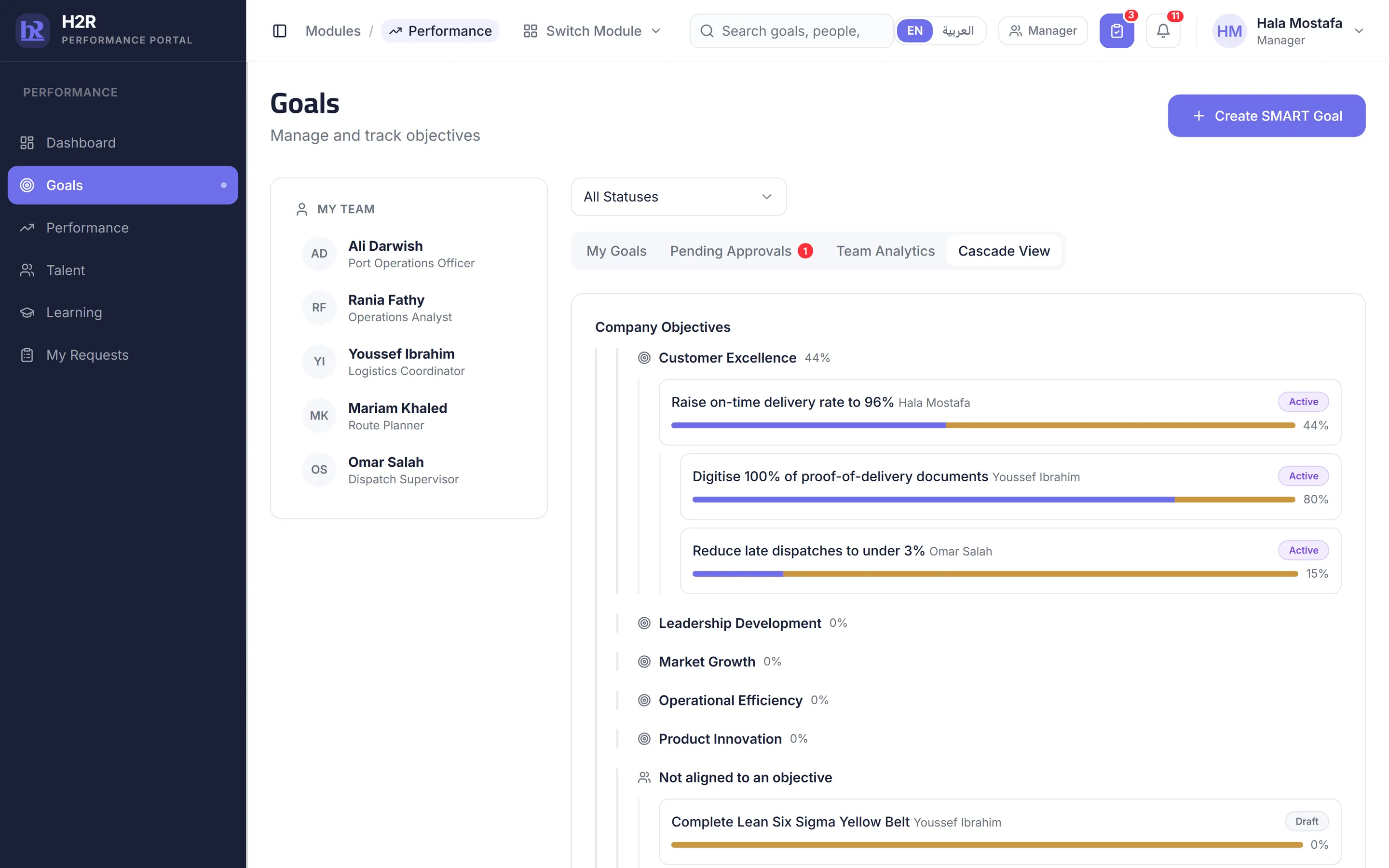
Open the Cascade View tab to see Company Objectives and the goals aligned beneath them. Goals with no link appear as Not aligned to an objective. This is how a manager checks that team goals add up to something the company cares about.
Check in on progress
Open a goal and use Progress & Updates: enter the Current Value, or tick milestones, and add an optional check-in note. Only the goal owner can update progress, and only while the goal is Active. Colleagues can add Comments, and the Audit Trail records who created, approved, edited or updated the goal. When the work is done, choose Mark complete.
Goals are tracked as On Track, At Risk or Behind. Your Dashboard shows goal completion, and open check-ins appear in My tasks as Goal check-in.
For administrators
Under Goal Settings (Goal Framework Rules) an admin decides whether:
- SMART fields are mandatory and manager approval is required;
- goals can cascade from department or company objectives;
- there is a maximum number of goals per person (3 to 5 is suggested), a minimum weight, and whether weights must total 100%;
- the default visibility is Private, Team or Public.
The same page holds the Company Objectives list and the Goal Approval Chain (who approves, with an SLA in business days). Under Automation Rules you can notify the employee, the manager or HR when a check-in becomes overdue.
Troubleshooting
- I cannot update progress. You must be the owner and the goal must be Active. A goal still pending approval cannot be updated.
- The company objective list is empty. An admin has to add objectives in Goal Settings, or your role may not see them.
- My goal was rejected. Open it to read the reason, edit it and submit again.
Was this article helpful?
Tell us in one line what was missing and we will improve it.
Related articles
Still stuck?
Send us a message with what you were trying to do and the screen you are on.
Contact support